Skip to content

Block the “Upgrade to Tahoe” alerts and System Settings indicator

Based on some comments on my Mastodon post, this only works due to a bug in macOS 15.7.3! The 90 day period isn't supposed to be a rolling date, but 90 days from release date. So it should have no impact…but it does, so I hope Apple doesn't fix the bug.

Although I have to have a machine running macOS Tahoe to support our customers, I personally don't like the look of Liquid Glass, nor do I like some of the functional changes Apple has made in macOS Tahoe.

So I have macOS Tahoe on my laptop, but I'm keeping my desktop Mac on macOS Sequoia for now. Which means I have the joy of seeing things like this wonderful notification on a regular basis.

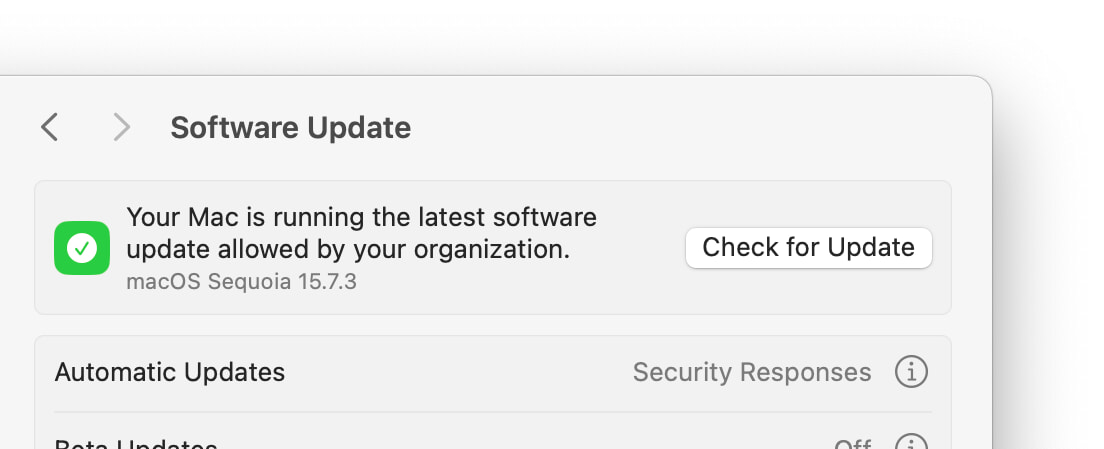
Or I did, until I found a way to block them, at least in 90 day chunks. Now when I open System Settings → General → Software Update, I see this:

The secret? Using device management profiles, which let you enforce policies on Macs in your organization, even if that "organization" is one Mac on your desk. One of the available policies is the ability to block activities related to major macOS updates for up to 90 days at a time (the max the policy allows), which seems like exactly what I needed.

[continue reading…]


A helper for Connections-style word games

Connections is a New York Times word game that's played with 16 words on a four-by-four grid; the objective is to correctly group four words into four sets, where the words in each set share some characteristic. Sometimes that's an easy thing to identify (colors), sometimes it's much tougher (dog breeds with first letter changed).

To play, you click on four words then click Submit to see if you got the grouping right. The way my brain works, though, I wanted to arrange the words visually first, as that makes it easier for me to process the relationships between the words. So I "created" (more on that below) a simple HTML/JS page to do just that:

Note that this is not a clone of the Connections game! It has absolutely no knowledge of the game, its rules, or which words belong where. It's not a game in any way, it's just a tool to help you rearrange words in a grid. I open it in a window next to the actual Connections puzzle, drag words around until I like what I see, then play the game for real in the other window.

[continue reading…]


Some of my fave Lego sets are retiring soon

For way too many years, building Lego kits has been one of my favorite hobbies. I find the construction process fun, and I love seeing the engineering Lego came up with to model various systems in their models. Over the years, we've built a lot of kits—45 or so in 20+ years. I have a spreadsheet that tracks the kits we've built, and while updating it today, I noticed that a number of my favorite sets are retiring soon.

If you like building Lego sets, these four are highly recommended—the builds were interesting, the engineering in the models is amazing, and I really like the finished set.

Emirates Team New Zealand AC75 Yacht: The engineering in this kit is pretty astonishing—there's a working pneumatic system that raises and lowers the hydrofoil arms, the mast turns, and the jib can swing from side to side. At $120, this is quite the bargain in the world of Lego.

Hogwarts Icons Collectors Edition: This wasn't the most fun build (a fair bit of repetition, especially in the owl's wings), but the end result is very cool. The sheer breadth of things in the set is also impressive.

Land Rover Classic Defender 90: The original 1983 model, and this one has a working suspension and steering. Fun to build, and lots of accessories to complete the look. If you're a Lego Insider (free), it's on sale for $60 off right now.

X-Wing Starfighter™: Luke's X-Wing wasn't pretty in the original Star Wars, and this one's not pretty either. It's beat up, missing a panel or two, and has some mismatched colors. But it's a fun build, and the engineering behind the x-wing technology is very impressive to see as you build it.

Once Lego retires a set, they get very hard to find—you can sometimes find remaining stock in stores, but if that fails, you're off to eBay to hope someone's selling a clean, complete set in good condition. What you'll usually find, though, are scalpers with unopened sets they're trying to sell for twice or thrice the actual list price.

So if you want them, buy them before they retire. These four in particular are amongst my favorite builds.


The day my DSLR died (to me)

I like taking pictures, and some years back, I bought a starter-level DSLR—the Fuji X-E3. It's a well-reviewed APS-C camera, and I enjoy taking photos with it. I have four lenses for it, including a decent zoom lens.

It's a wonderful camera…but it basically died to me some time in mid July of 2025. Why then? Because that's when my wife and I were starting to put together our lists of stuff to pack in the car for our 7,000+ mile adventure.

[continue reading…]


We drove through 46% of the US states on one trip

My wife and I just completed a three-week journey around a chunk of the United States. What started as a plan to visit family and friends in Boulder, Colorado and Albuquerque, New Mexico, expanded to cover 23 states, two countries, and 19 separate attractions, spanning 7,200+ miles of travel.

We got incredibly lucky with weather (generally gorgeous, only really too hot in Cincinnati), health (no colds or COVID for either of us), crowds (minimal), and the car (no accidents and no issues). It was an excellent trip; here's a view of the overall route:

(When we entered Oklahoma and then Arkansas, I crossed off the last two states on my list—I have now visited all 50 states. I though I'd get this done years ago, but it just never worked out until now.)

After our family and friends visit ended in Albuquerque, we started the real tour, heading east to Memphis, then generally northeast to Niagara Falls, and then back due west to Portland. Along the way, we stopped at 18 separate attractions—monuments, museums, an amusement park, a zoo, tourist traps, and even a tennis match. I'll post separately on the logistics of this trip, as we learned a fair bit that might be useful to others planning something similar.

But if you're interested in what all we saw, here's a chronological list with links to the Flickr albums associated with each attraction:

[continue reading…]


It’s been quiet around here lately…

Since February, in fact. Sorry about that; life happened. Hopefully that starts changing soon, as in today.

The first update, though, is that I'm going to stop updating my macOS releases post—I think it's served its need, and it was becoming arduous to keep up with. I have added a link to Wikipedia's macOS history page at the top of the post, as you can find much of the information I provided there. I know it's not exactly the same, but for my needs, it's good enough.

I do plan to resume posting, starting very shortly with a post that somewhat explains my absence over the last few months.https://robservatory.com/wp-admin/profile.php


A full history of macOS (OS X) release dates and rates

You may have noticed this post is quite out of date. It was getting cumbersome to keep up with all of Apple's updates, including to older OS releases. As I wasn't using the data myself much any more, I've really lost interest in keeping it up, so it's officially retired.

In its stead, if you still need this detail, I recommend Wikipedia's macOS Version History page. It has much the same information, and if you need details about a particular release, just click to see all of its point releases (i.e. Sequoia).

Thanks for all the help with this post over the years, but it's time for it to sign off...no more updates to my macOS updates post.

[continue reading…]


Create macOS automations using a little-known app

I use a lot of browsers for testing, so I created this launcher to make the process easier:

Browser launcher

You may be wondering what third-party tool I used to do this. Such things are possible in Keyboard Maestro through custom HTML prompts, but that's a lot of work. I'm sure there are other apps that can do similar things. Surprisingly, though, I used nothing more than a built-in app to create this launcher. The app has existed since macOS 10.15 (Catalina), but I doubt more than a handful of Mac users (outside its target user base) even know it exists—I didn't hear about it until yesterday.

What app is that? It's called Panel Editor, and the easiest place to find it is here: System Settings → Accessibility → Keyboard → Scroll down until you see the Panel Editor button.

[continue reading…]


Revisting old-school stock quotes

Back in 2020, I explained how to use Terminal to display stock quotes. Once set up, it looks something like the image at right, though that's a four-year old screenshot, so the prices are way off!

In a follow-up post, I showed how to quickly chart any of the stocks in your list. I've moved to a new Mac since then, which means (as always for me with a new Mac), I set it up from scratch.

Sometimes not everything makes the cut for the new Mac; in this case, my Terminal quotes were one of the things that didn't make the cut.

But I recently decided I wanted them back, and the good news is that it's gotten a bit simpler in four years since I last wrote about this. And I took the time to improve the stock charting macro, too.

Read on if you're interested in geeky Terminal stock quotes…

[continue reading…]


Fix a broken search in Photos

I was having some issues with my desktop photos (which I load from Photos) not working properly, and I noticed that one particular photo wouldn't preview in the Wallpaper System Settings panel. I noted the name, searched for it in Photos, and came up with no matches. Then I tried other searches, for photos I knew were there as I could see them onscreen, and still, no matches. Clearly Photos' search was broken.

I tried the (long, slow, painful) photo library rebuild process, but still, no search.

After much digging, I found a solution that works, which is to force Photos to rebuild its search database. Here's how to do that:

  1. Make sure you have good backup of Photos before you start, just in case.
  2. Also make sure you quit Photos before proceeding.
  3. In Finder, navigate to your Photos.library file and right-click on it. Select Show Package Contents from the pop-up menu.
  4. In the new window that opens, open the database folder. Inside of that folder is a search folder. Delete it, but leave the database folder open.

That's it, you're (almost) done. Now launch Photos, and it will start rebuilding the search database. This can take a while, depending on the size of your database—it took about five or so minutes for my 65,000ish image collection. There's also no onscreen indication that anything is happening, so use Finder: Open the newly-created search folder in Finder, and check the size of the psi.sqlite file. When the size stops changing, the rebuild is done.

I found this answer in a post by Michelle Lyons in this Apple Discussiosn thread. Michelle notes they found the answer elsewhere, but don't link to that source, so I don't know who originally discovered this. All I know is it worked for me!